Checkout payment methods
On this page
Send the customer straight to one payment method in Payout Checkout instead of the list of all methods. You can do it in two ways.
A. Appending a parameter to the URL
-
Get the checkout URL
Create the checkout and take
checkout_urlfrom the response, as in Simple payment, steps 3 and 4. -
Append the payment method
Add the
payment_methodquery parameter with one of the supported values.checkout_urlalready has a query string, so append the parameter with&:TEXThttps://sandbox.payout.one/checkouts/<token>/?account_id=<account>&payment_method=tatra_pay
B. Specifying the method during payment creation
Send payment_method with one of the supported values in the body of Create checkout, together with the other fields of the checkout:
{
    "payment_method": "card"
}
Payment methods in your e-shop
You can offer the payment methods directly in your e-shop and skip Payout Checkout. When the checkout URL carries a bank-specific identifier from Bank buttons, such as tatra_pay or sporo_pay, Payout doesn't show its own page and redirects the customer straight to the bank.
-
Show the methods in your e-shop
Offer the bank buttons that are enabled for your account and let the customer choose one.
-
Create the checkout
Create the checkout and take
checkout_urlfrom the response, as in Simple payment, steps 3 and 4. -
Redirect the customer with the chosen method
Append
payment_methodwith the identifier of the chosen bank tocheckout_url, as in option A, and send the customer to that URL:TEXThttps://sandbox.payout.one/checkouts/<token>/?account_id=<account>&payment_method=sporo_payPayout answers the request with a redirect to the bank, so the customer continues in SporoPay without seeing Payout Checkout.
-
Handle the return and the webhook
After the payment, the customer comes back to the
redirect_urlof the checkout and Payout sends the webhook, as in Simple payment, steps 6 and 7.
The customer still sees Payout Checkout when:
- the method is set only in the body of Create checkout (option B) and not in the URL;
- the identifier is
bank_button, which opens the list of banks; - the method isn't available for your account;
- the checkout has expired.
A failed payment can also bring the customer back to Payout Checkout instead of your redirect_url.
Supported values
Note
The methods you can use depend on your contract and the settings of your account. If the value is unknown or the method isn't available, the customer sees the standard list of all available methods.
Use the identifiers exactly as listed: some contain hyphens (pisp-slsp), others underscores (tatra_pay).
Cards and digital wallets
| Identifier | Description |
|---|---|
card |
Payment card |
apple_pay |
Apple Pay |
google_pay |
Google Pay |
Instant bank transfers (PIS)
With pisp, the customer chooses a bank from the list. With a bank-specific identifier, the customer goes straight to that bank.
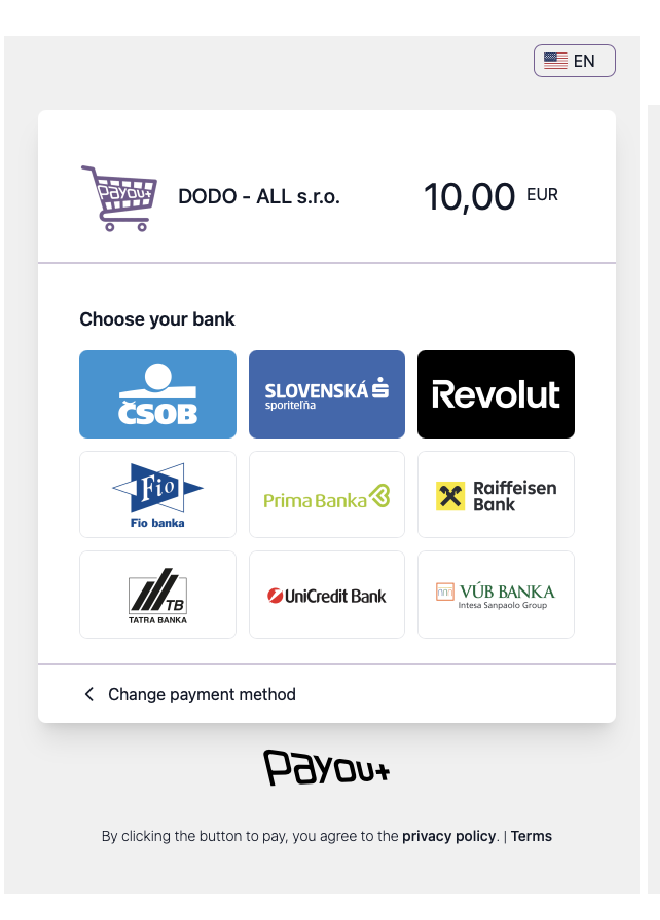
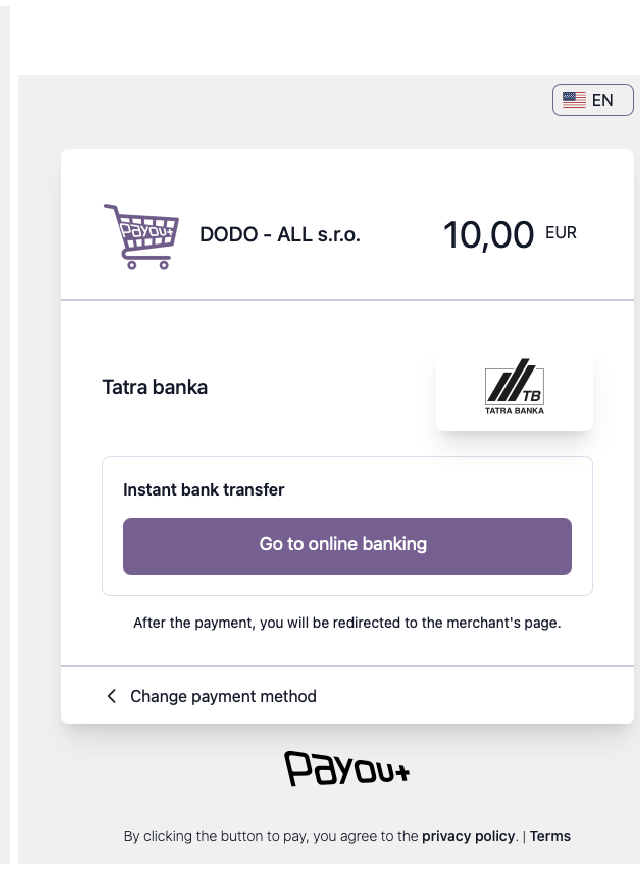
| Identifier | Bank | Currency |
|---|---|---|
pisp |
List of all banks available for PIS | Per bank |
pisp-slsp |
Slovenská sporiteľňa | EUR |
pisp-vub |
VÚB banka | EUR |
pisp-tatrabanka |
Tatra banka | EUR |
pisp-csob |
ČSOB | EUR |
pisp-unicredit |
UniCredit Bank | EUR |
pisp-primabanka |
Prima banka | EUR |
pisp-raiffeisen |
Raiffeisen bank | EUR |
pisp-fio |
Fio banka | EUR, CZK |
pisp-revolut |
Revolut | EUR |
pisp-csas |
Česká spořitelna | CZK |
pisp-komercni-banka |
Komerční banka | CZK |
pisp-csob-cz |
ČSOB CZ | CZK |
pisp-air-bank |
Air Bank | CZK |
pisp-moneta |
Moneta Money Bank | CZK |
pisp-raiffeisen-cz |
Raiffeisenbank CZ | CZK |
Bank buttons
With bank_button, the customer chooses from the banks that offer a bank button. With a bank-specific identifier, the customer goes straight to that bank.
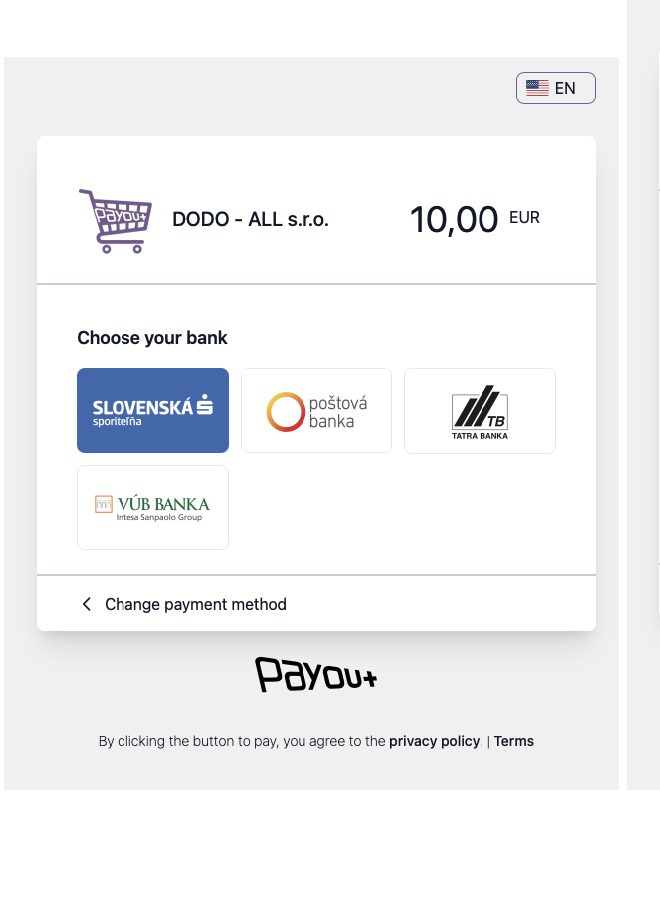
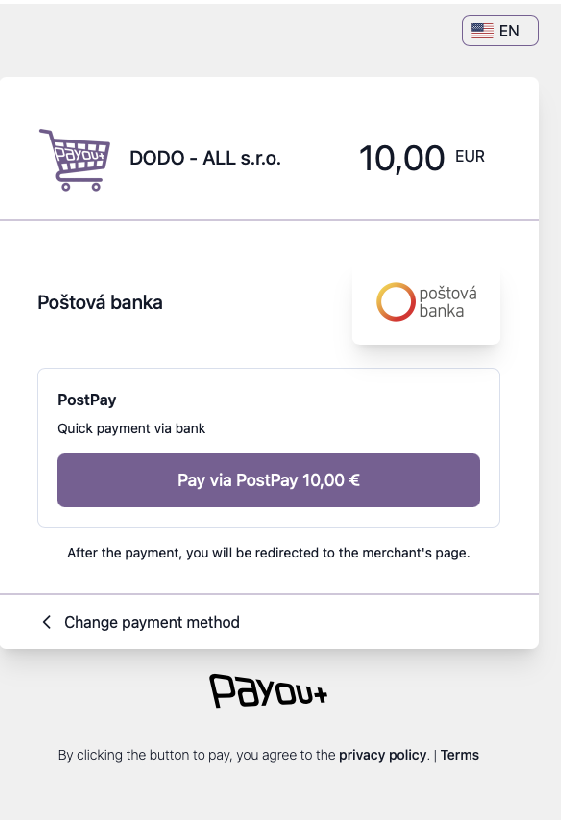
| Identifier | Bank |
|---|---|
bank_button |
List of all banks with a bank button |
evub |
ePlatby VÚB |
tatra_pay |
TatraPay |
sporo_pay |
SporoPay |
post_pay |
PostPay (Poštová banka) |
unicredit |
UniCredit (currently unavailable) |
Manual bank transfer
| Identifier | Description |
|---|---|
bank_transfer |
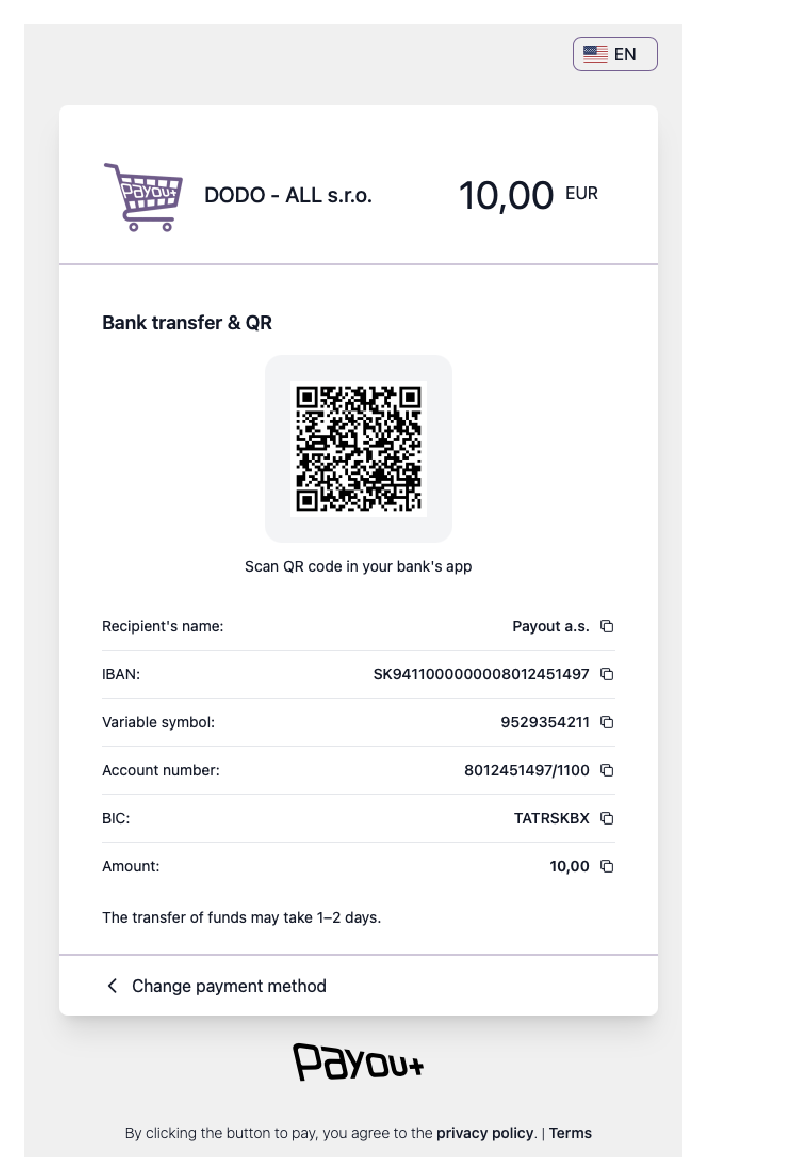
Complete payment details (IBAN, amount, variable symbol) with a QR code for convenient payment, shown according to your settings |
- Need help? Contact support.
- Questions? Contact sales.
- Service status? status.payout.one.
- LLM? Read llms.txt.